
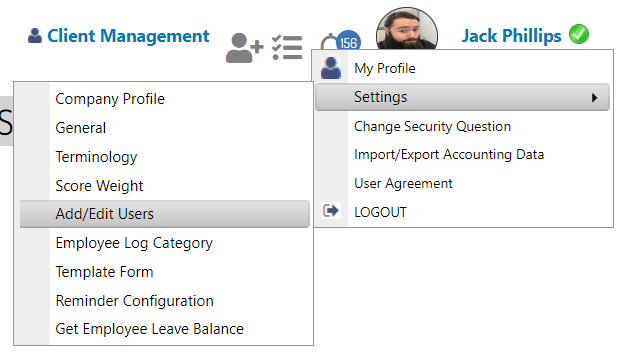
- Once you have entered your account, you can click on your name on the top right, followed by “Settings” -> “Add/Edit Users"
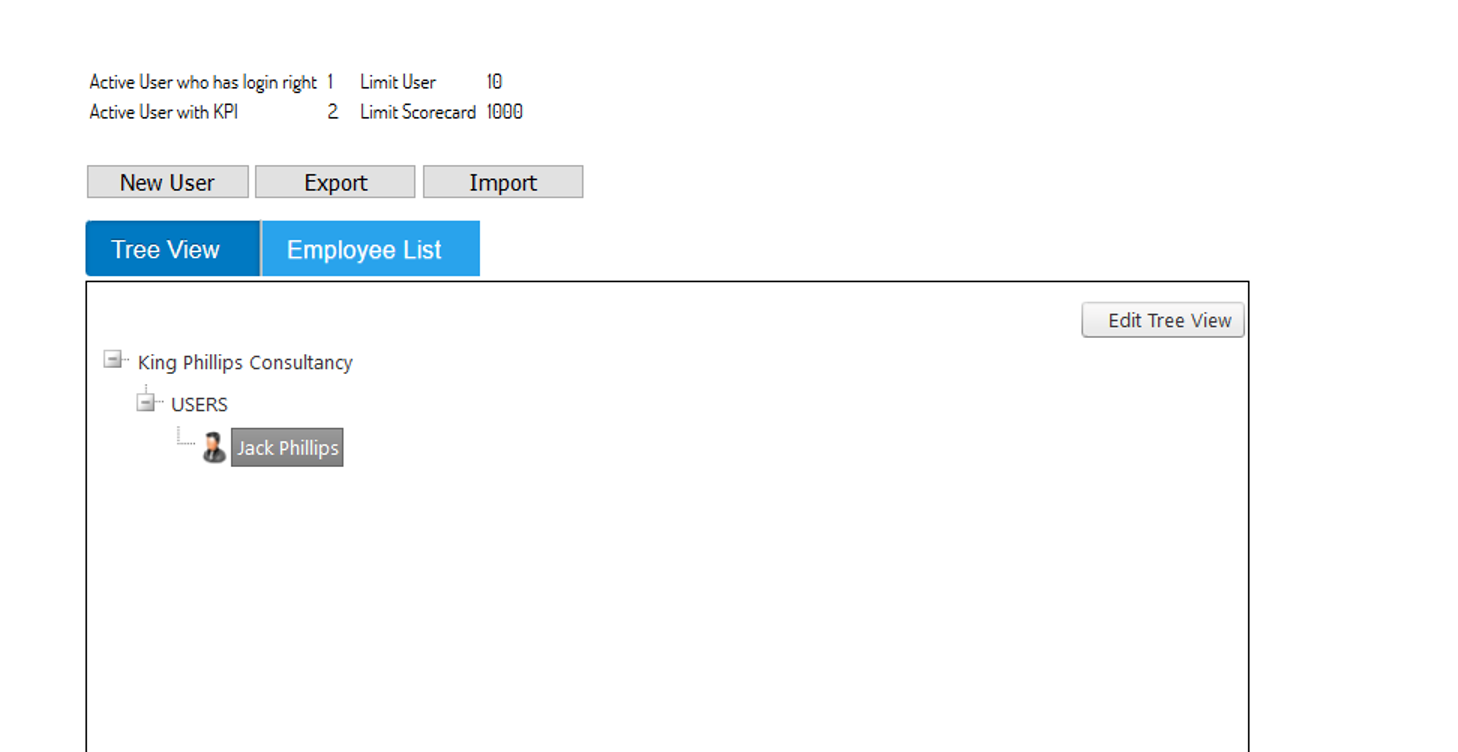
- Select the user in question (double click on their name) will allow you to access their settings
- Change the User's “Status” from “Active” to “Not Active”.
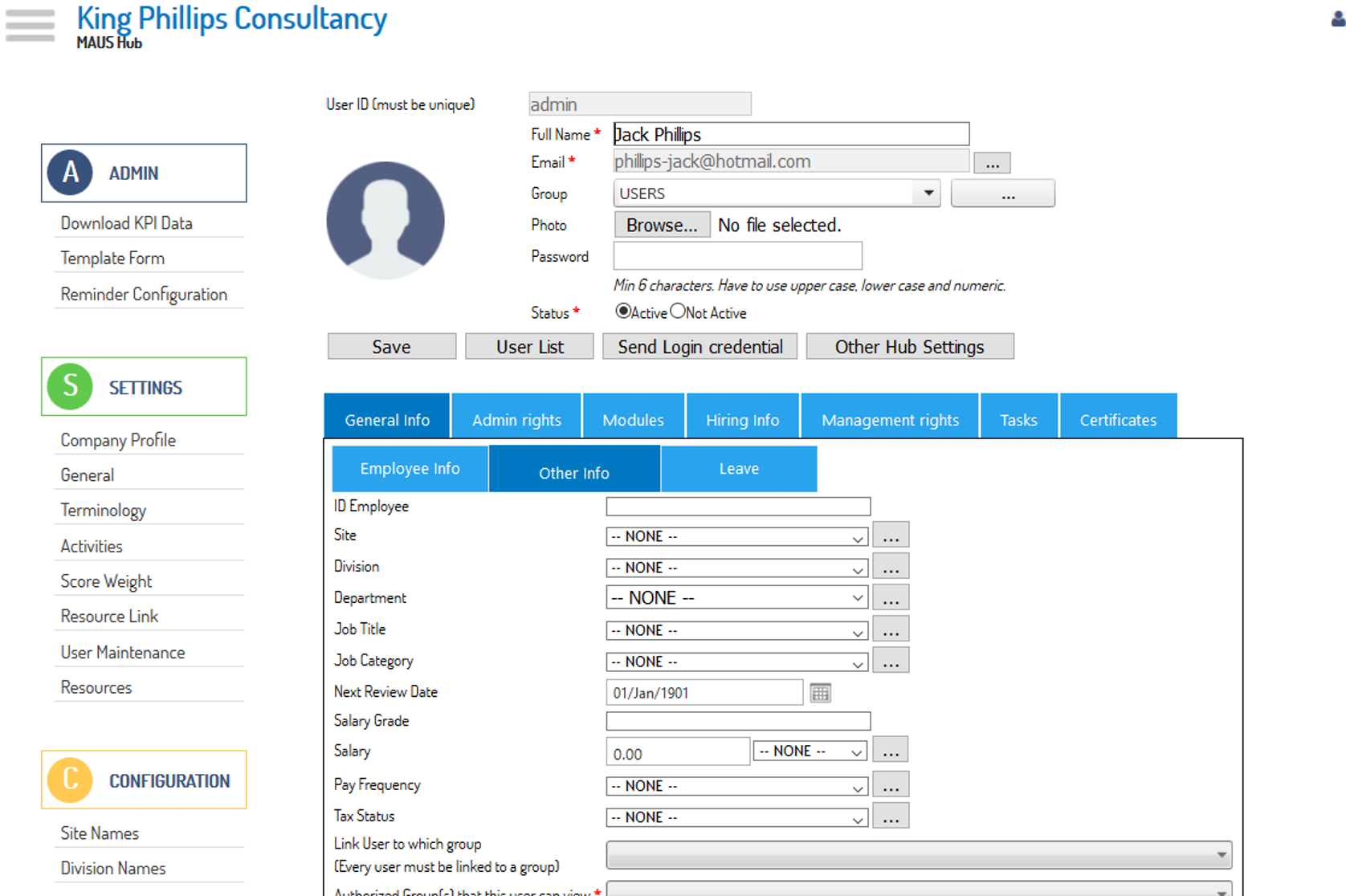
- Pressing save will save this change and remove the user from all relevant lists.
Note: Within the Add/Edit User screen, you may notice an additional "Employee List" Tab, this provides you with an alternate means of reviewing/accessing your Employees, and also provides you with the option to review "Not Active" Employees, should you need to check this list or return an Employee to the "Active" status.