
Understanding how to make the most of a Questionnaires is critical when utilizing Maus' Exit Planning Suite to increase business value, identify gaps within your business, and more!
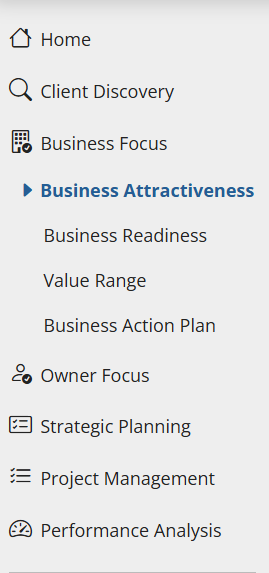
When accessing an Exit Planning Questionnaire within Maus, you can select your chosen Questionnaire from the left hand menu, either under the Business Focus or Owner Focus left hand menu sections:
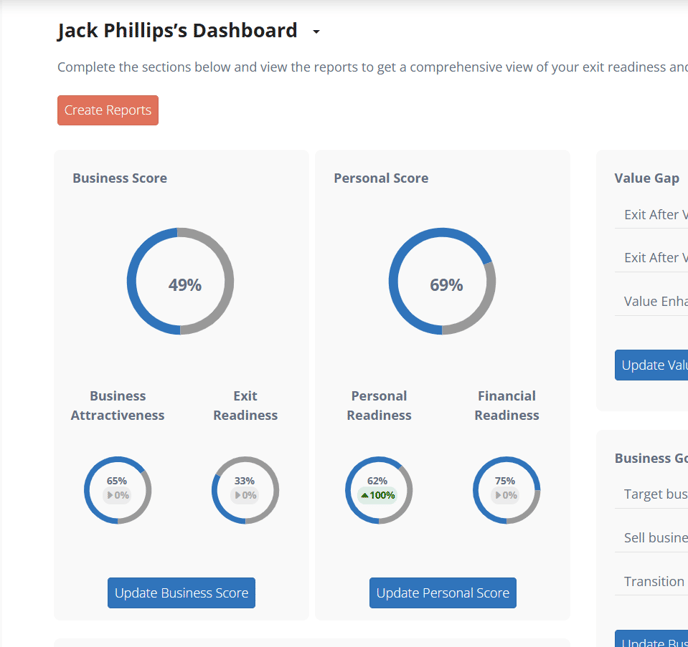
Or access either the Business Score or Personal Score sections of the Exit Planning Dashboard via the relevant "Update" prompts:
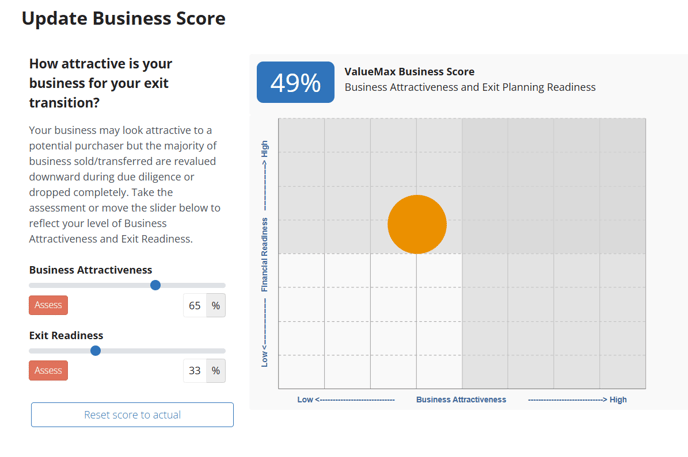
and click the "Assess" prompt next to your desired Questionnaire:
After doing so, you will be delivered to the Questionnaire's home page, and be invited to start a category and respond to questions.
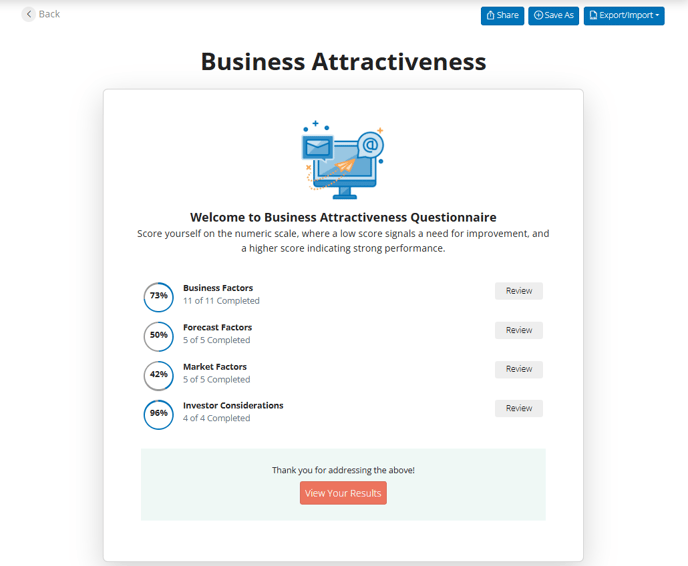
Each assessment within our platform will contain a number of categories, which be navigated via Questionnaire homepage, which you will be redirected to when you complete a category.
Within each category, there will be a number of questions, each of these will include a title in addition to the full question itself, and be presented one by one:
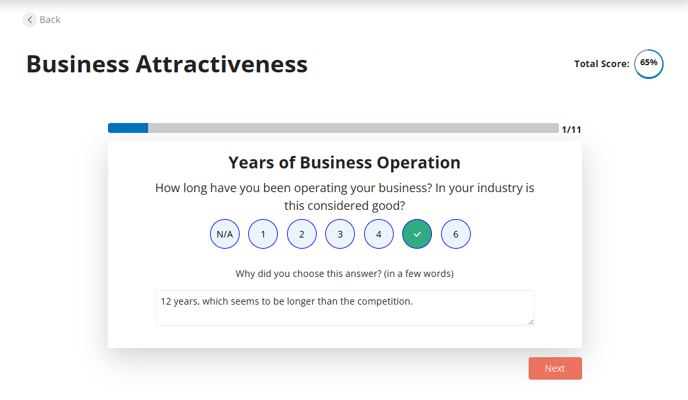
And provide you with the opportunity to respond via a numbered response (traditionally on a 1 - 6 scale) and a comment box for additional details, justifications or insights.
While the system will primarily leverage the scores you input when providing you with your final Exit Planning score, you will find the comments invaluable when reviewing these tasks and beginning your remediation process.
Simply move through the assessment, responding to the questions presented. If a question is not relevant to the business, leave the answer as "N/A". The system will not include the "N/A" responses within the final score.